Help Center > Create Session
How to Create a Session in SLP Score
Document therapy sessions quickly and efficiently
The Sessions tool in SLP Score acts as a therapy calendar that helps you manage:
- Therapy sessions
- Evaluations
- Clients attending each session
- Lesson plans
- Progress notes
- Goal scoring
- Attendance tracking
This allows you to keep your therapy schedule and documentation organized in one place.
Step 1: Navigate to the Sessions Page
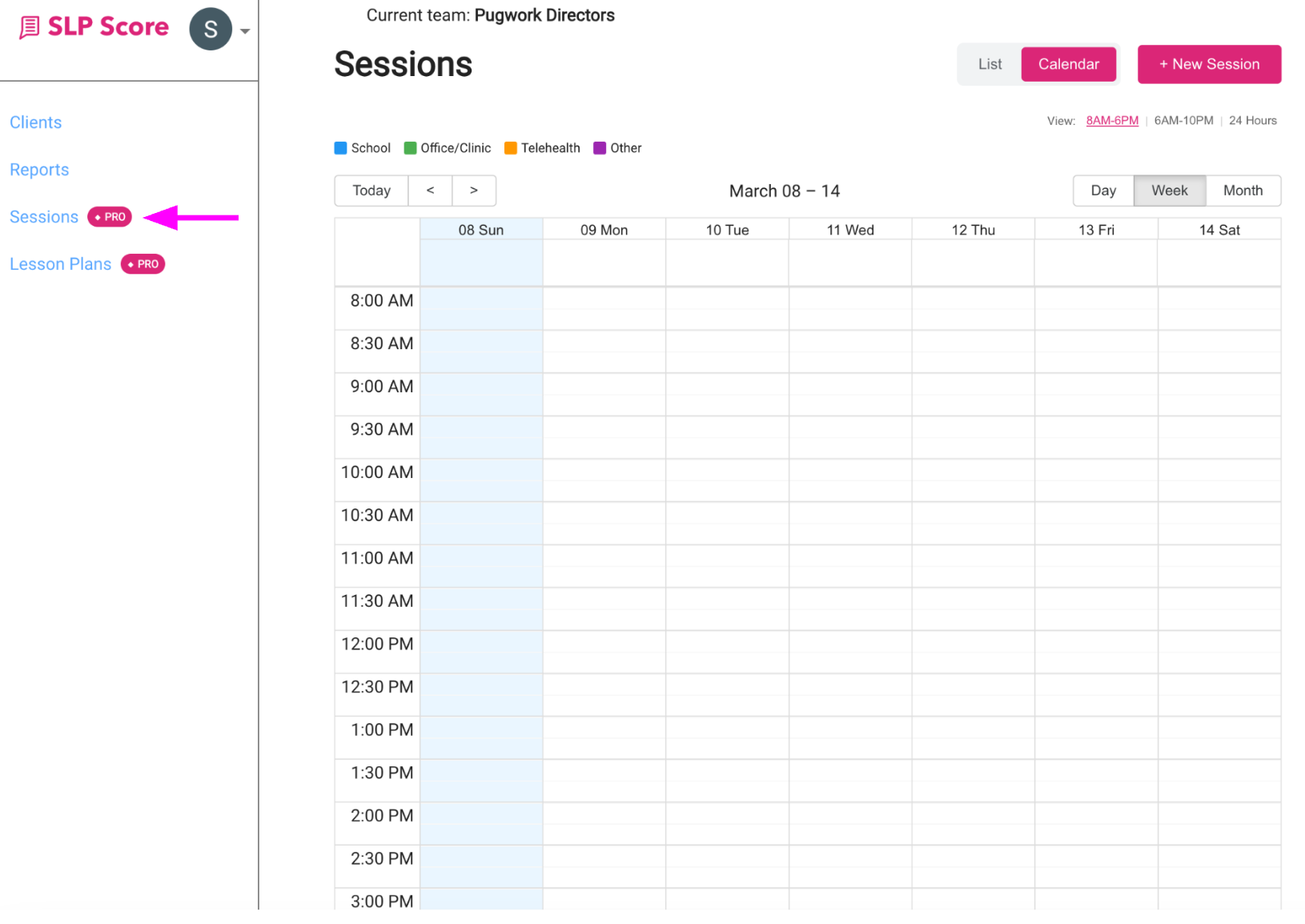
Click Sessions in the sidebar navigation. This will open your session calendar.
Step 2: Create a New Session
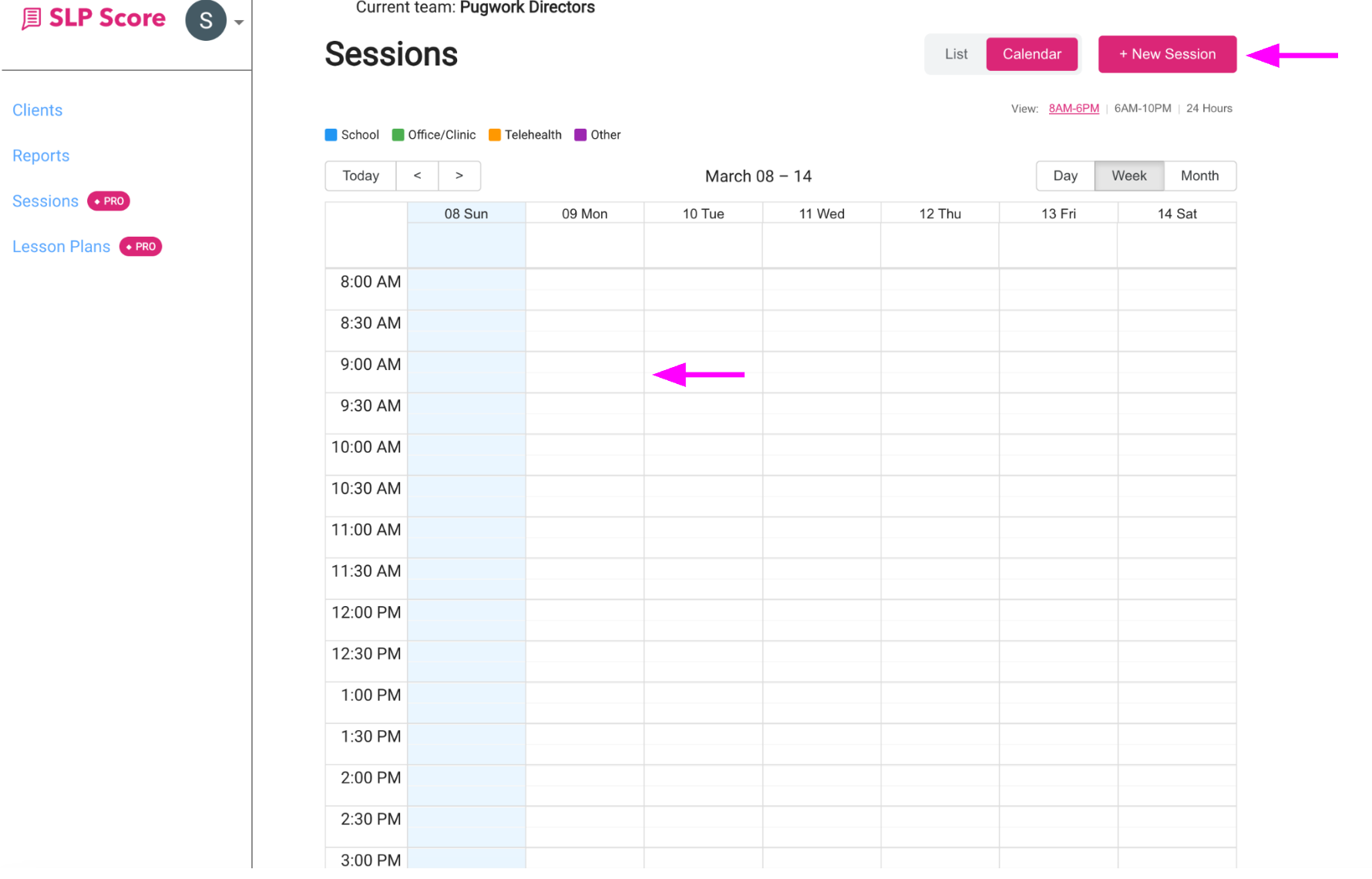
There are two ways to create a session:
Option 1 — Use the New Session Button
Click + New Session in the top right corner.
Option 2 — Click Directly on the Calendar
Click on any time slot in the calendar to create a session at that specific time.
Step 3: Enter Session Details
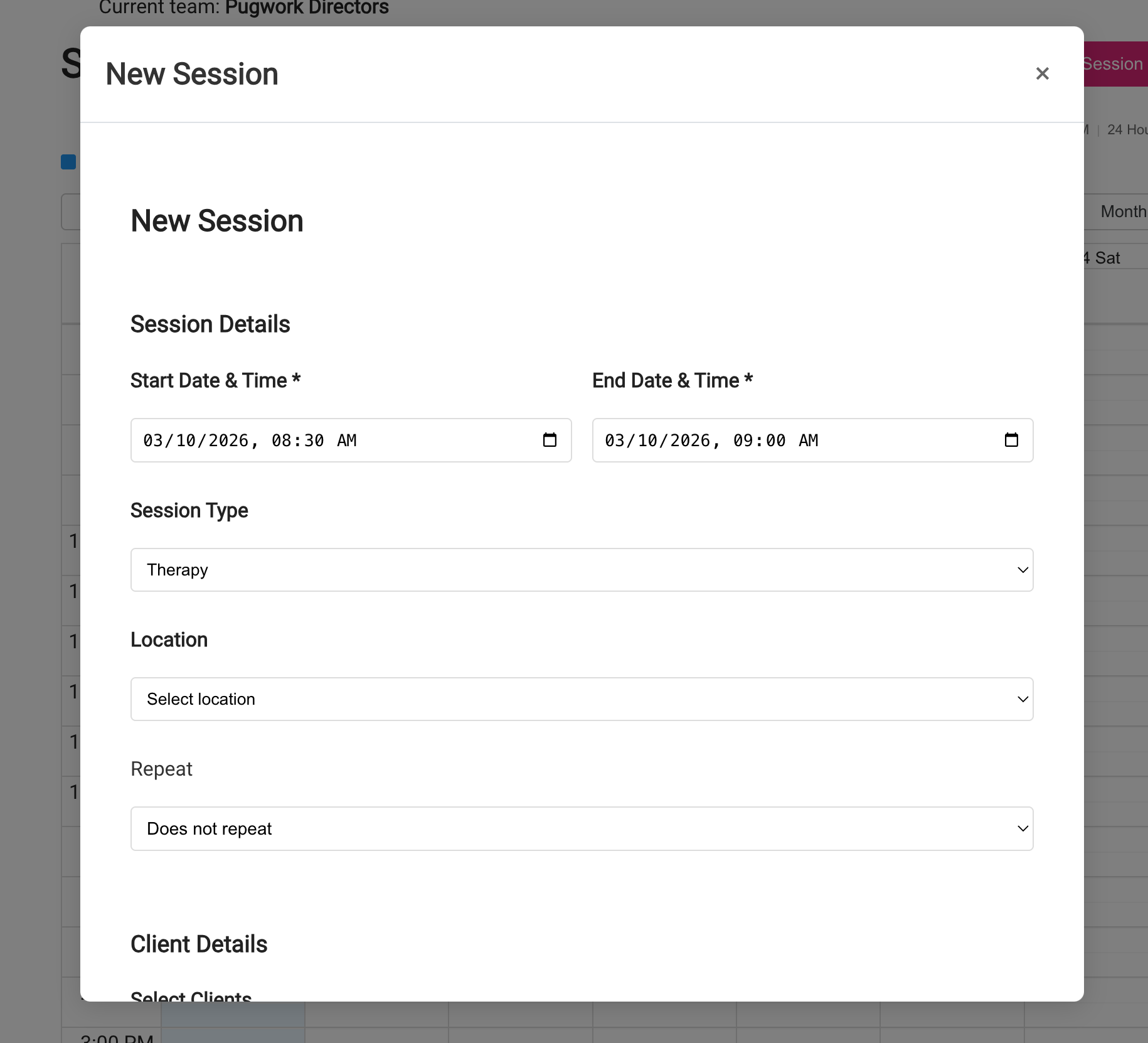
Fill out the session details:
Date & Time
- Start date and time
- End date and time
Session Type
Choose:
- Therapy
- Evaluation
Location
Select where the session will occur:
- School
- Office/Clinic
- Telehealth
- Other
Repeat
You can choose whether the session repeats on a recurring schedule. Choosing a recurring cadence will automatically create repeat sessions at that cadence.
Client Details
Select the client(s) who will attend the session.
Lesson Plan
Optionally attach a lesson plan to guide the session.
Medicaid Designations
If applicable, add Medicaid billing designations.
After entering the details, save the session.
Step 4: Open the Session to Manage It
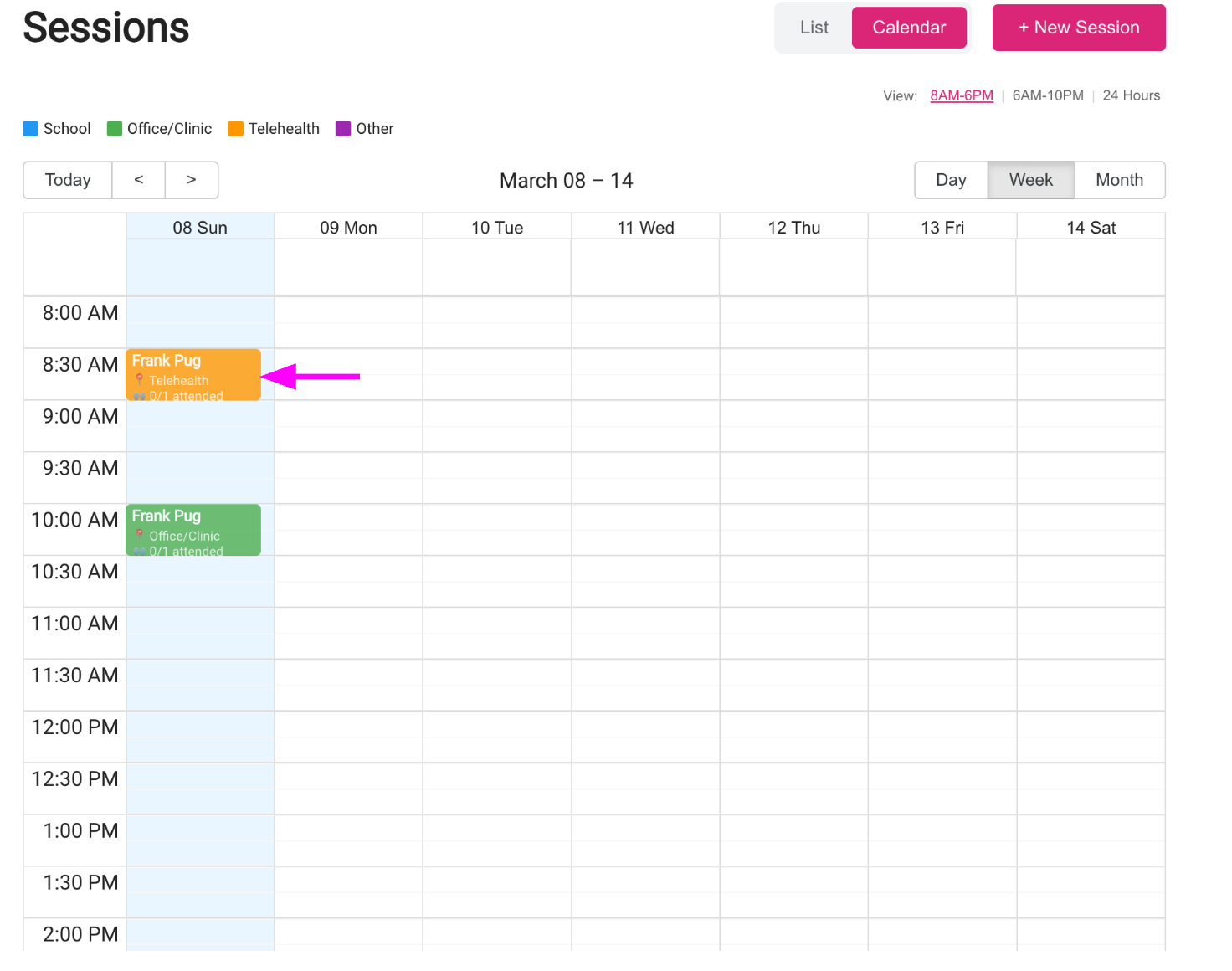
Once a session is created, you can click it in the calendar to open the Session Details page.
From here you can:
- Edit the session
- Delete the session
- View session details
Step 5: Manage Attendance and Progress Notes
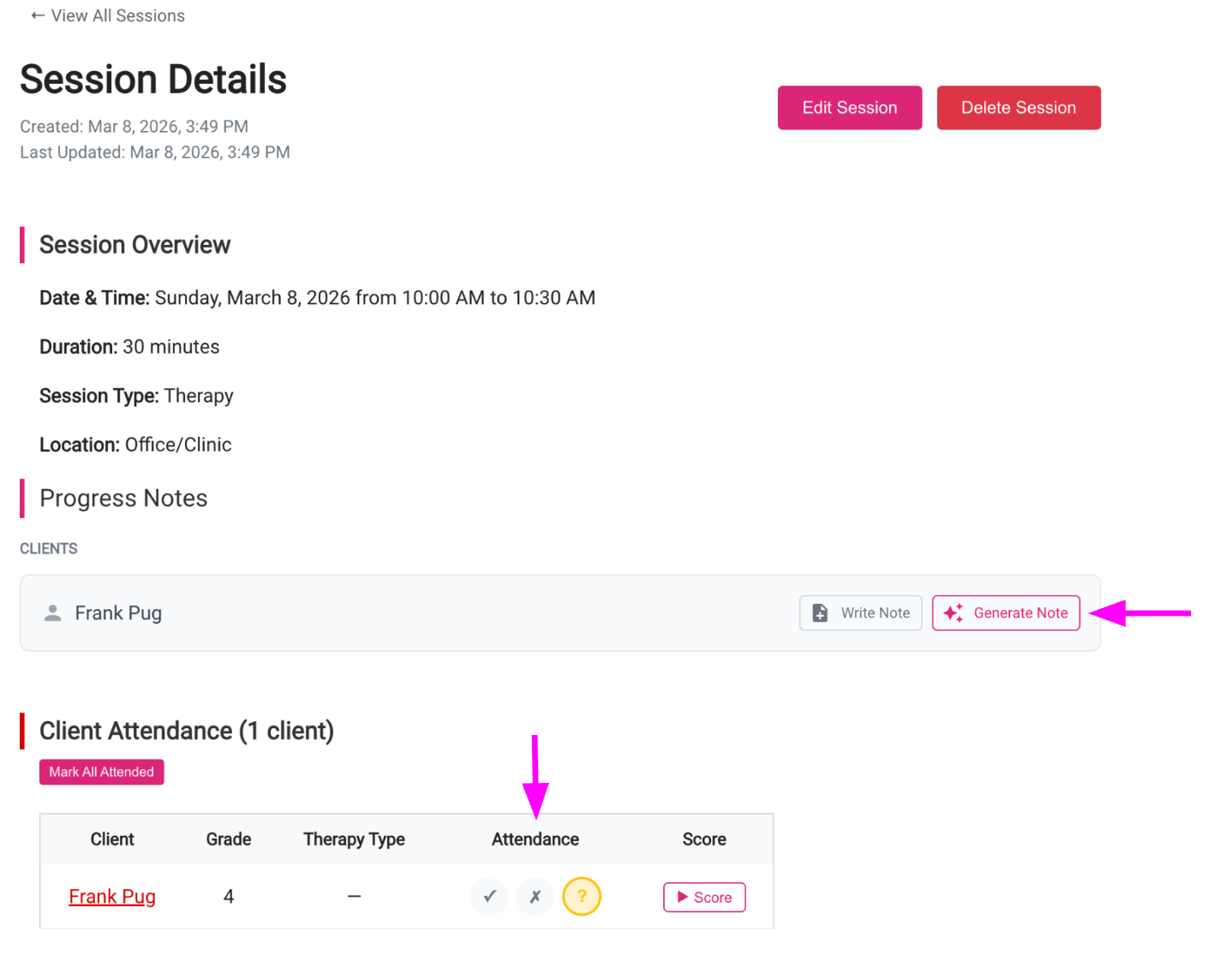
Within the session details page, you can:
Track Attendance
Mark whether each client:
- Attended
- Missed
Add Progress Notes
You can either:
- Click Write Note to manually add progress notes
- Click Generate Note to automatically generate notes
Step 6: Score Client Goals
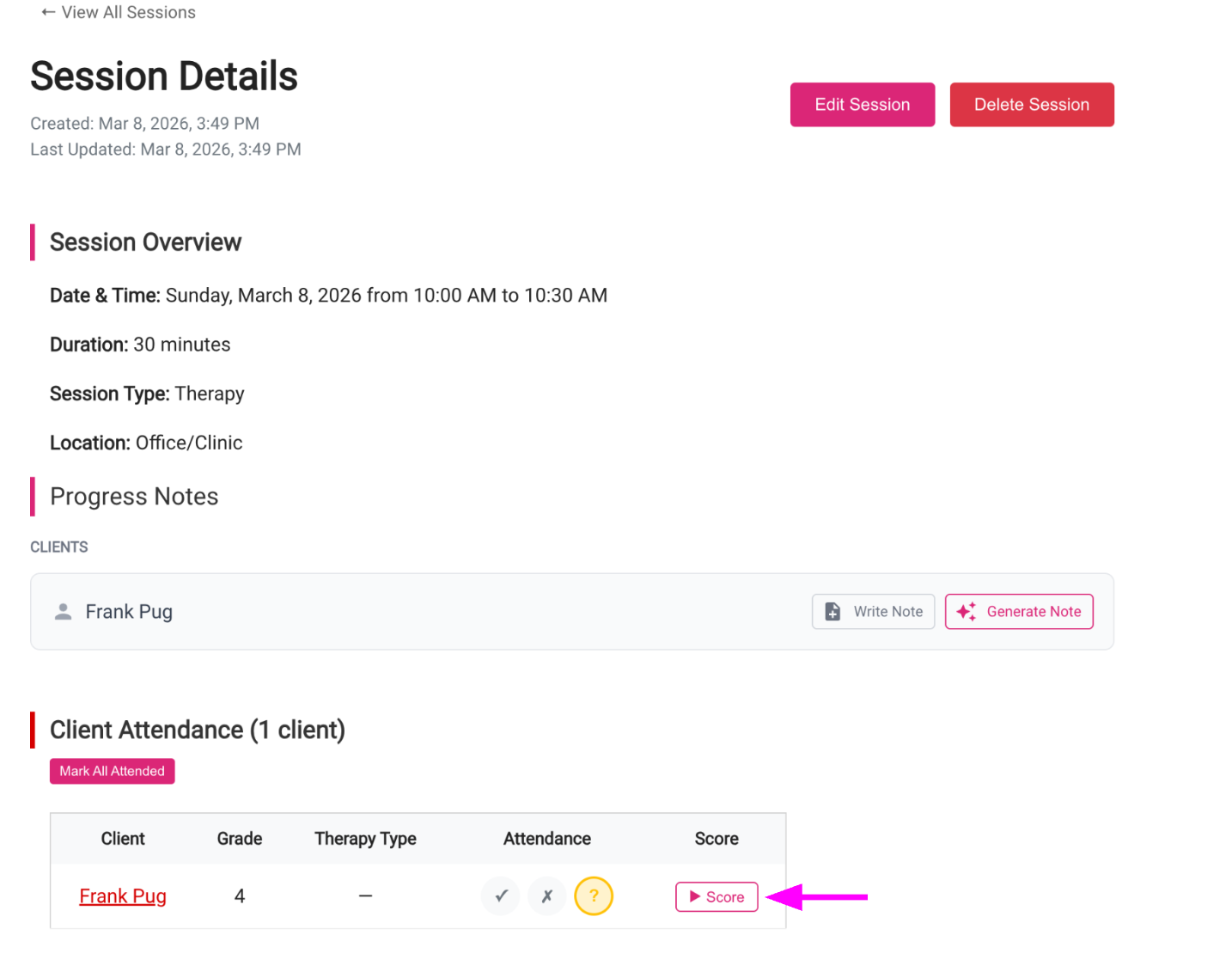
For each client in the session, you can also score progress toward therapy goals:
- Click Score
- Select the goal you want to track
- Mark correct and incorrect instances for the session
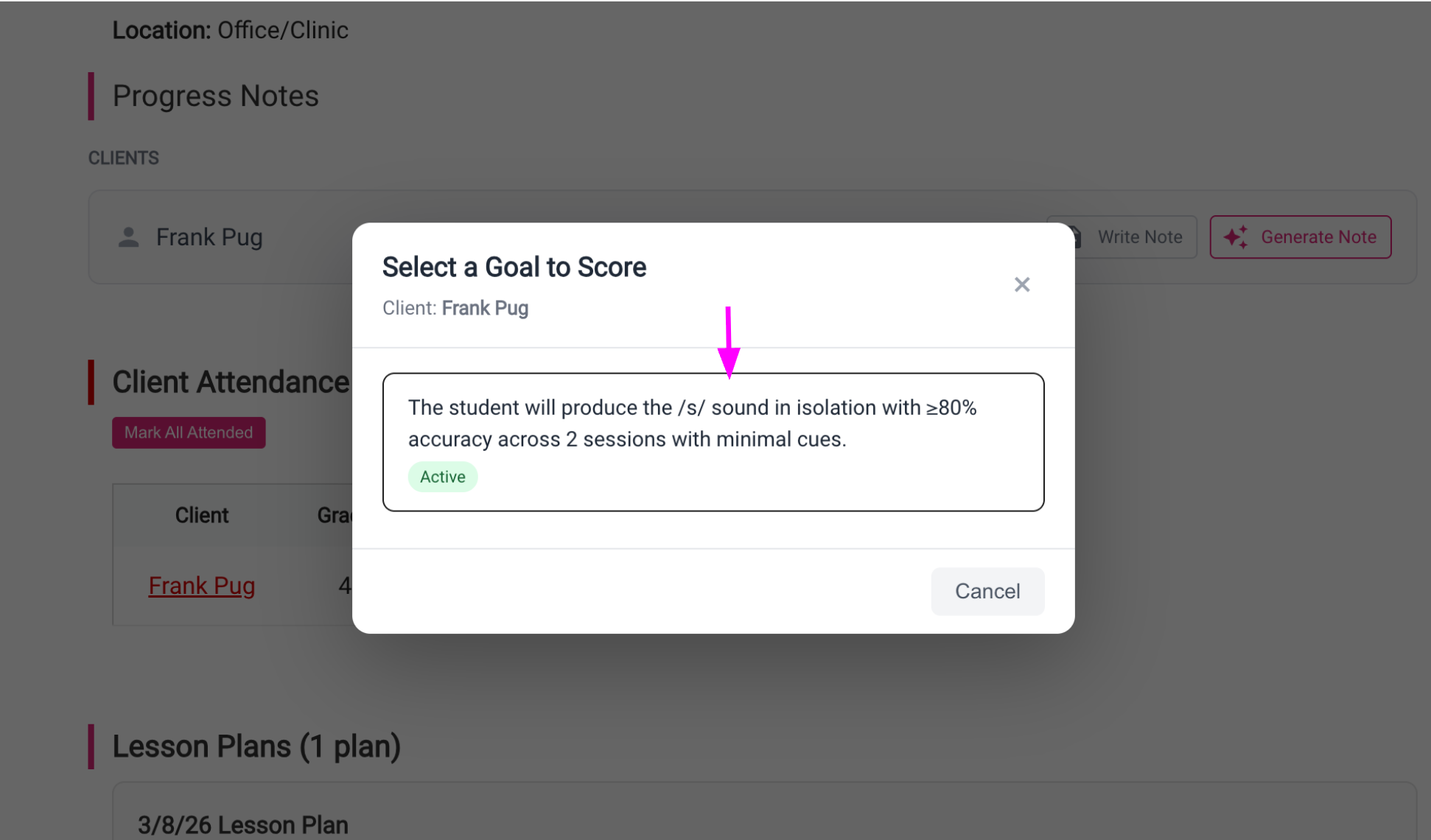
This helps track progress toward goals over time.
What You Can Do From a Session
A single session allows you to manage:
- Attendance
- Progress notes
- Goal tracking
- Lesson plans
- Client scheduling
All in one place.
Pro Tip
Many SLPs create recurring sessions for weekly therapy blocks so they don't have to rebuild their schedule each week.