Help Center > Score Assessment
How to Score an Assessment in SLP Score
Quick and accurate assessment scoring made simple
Scoring an assessment in SLP Score takes just a few minutes.
You can score one or multiple assessments at once, generate summary charts instantly, and receive a formatted Google Doc report by email.
Step 1: Navigate to Reports
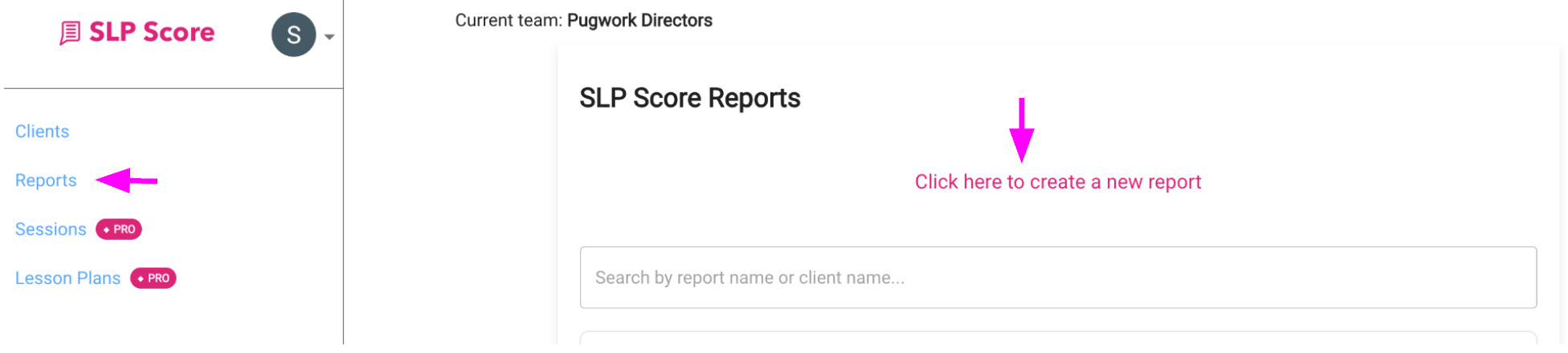
- Click Reports in the left sidebar
- Click "Click here to create a new report"
Step 2: Enter Report Details
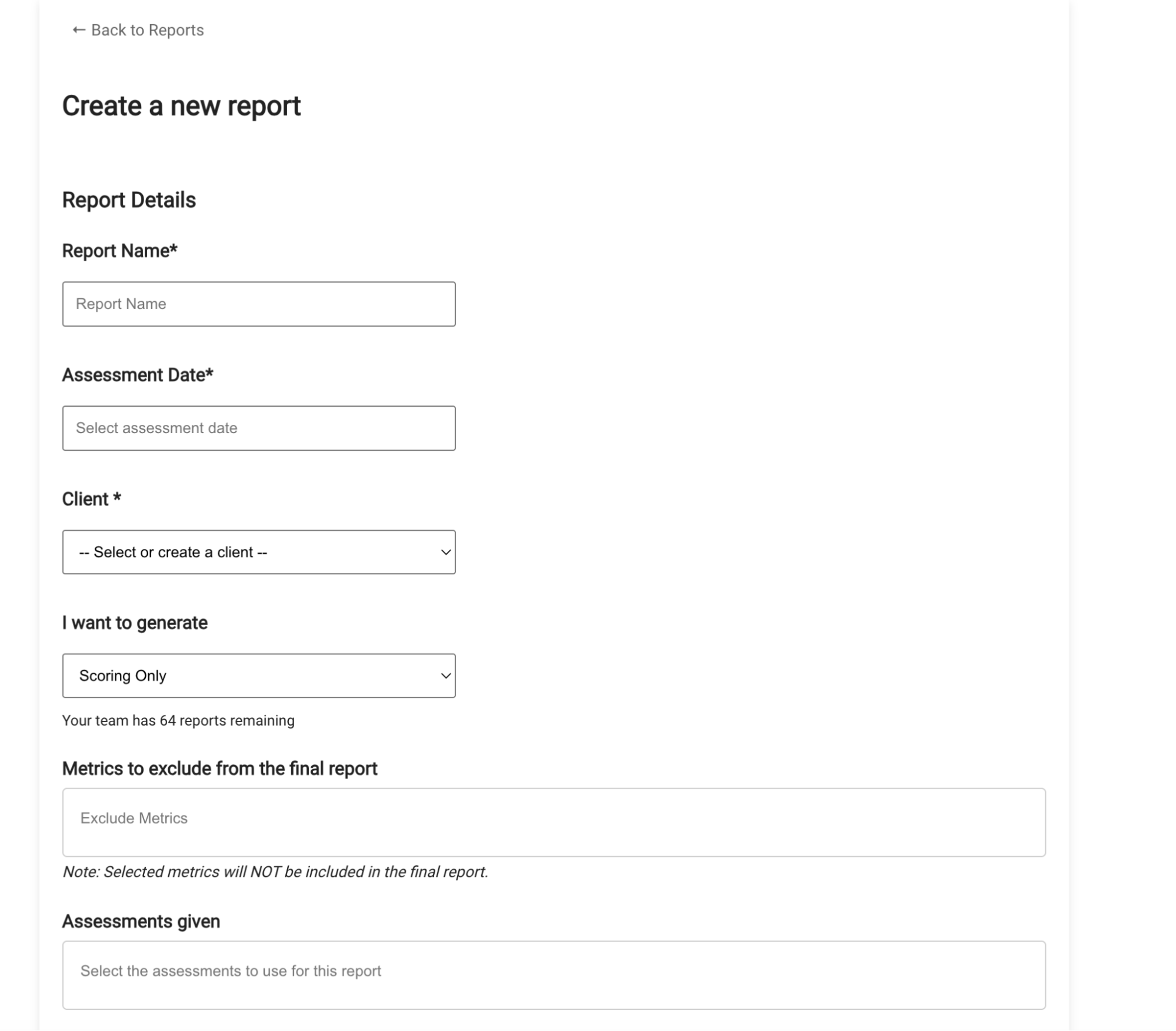
Fill out:
- Report Name
- Assessment Date
- Client
If the client doesn't exist yet, you can create one directly from the client dropdown and save it.
Step 3: Choose What You Want to Generate
Under "I want to generate", choose:
Scoring Only → Score assessments without generating a full evaluation report
Note: This is the only option available for Free and Scoring-Only plans.
Step 4: Exclude Any Metrics (Optional)
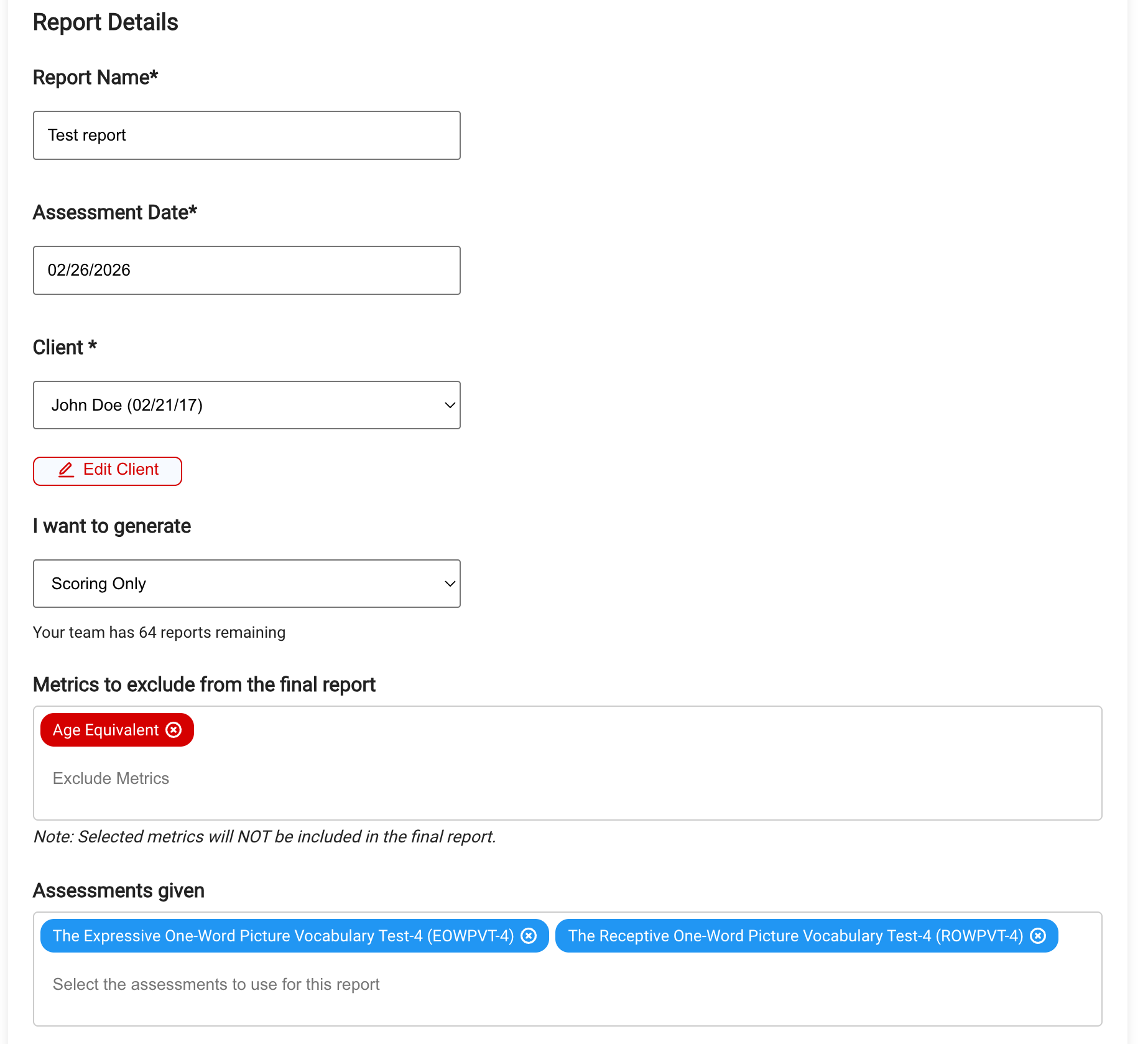
⚠️ Common Confusion
By default, all metrics are included in your summary charts.
If you do NOT want a specific metric to appear, you must actively select it under Metrics to exclude before submitting your report.
To exclude a metric (for example, Age Equivalent):
- Select it under Metrics to exclude
- It will be removed from your summary charts
Step 5: Select Assessments to Score
Choose one or more assessments under Assessments given by typing into the text field to search and clicking on the assessment.
You can score multiple assessments together.
There is no limit to how many assessments you can include in one scoring session.
Step 6: Enter Scores for Each Assessment
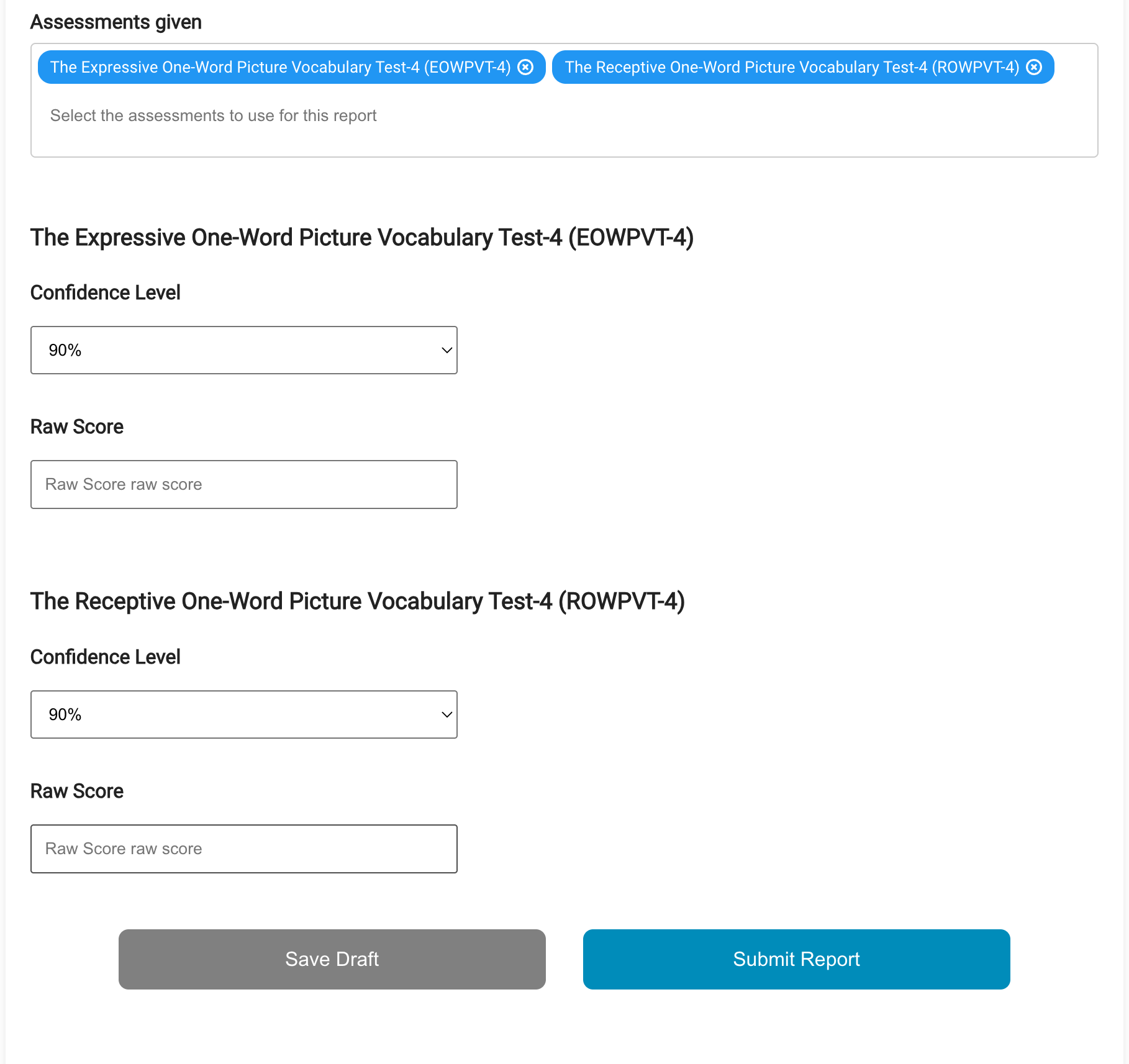
For each assessment:
- Select Confidence Level
- Enter Raw Score
Repeat for each test selected.
Step 7: Save Draft or Submit
At the bottom of the page:
- Save Draft → Saves progress without scoring
- Submit Report → Runs scoring immediately
If saved as draft: It will appear labeled as a draft on your Reports page.
Step 8: View Your Scores
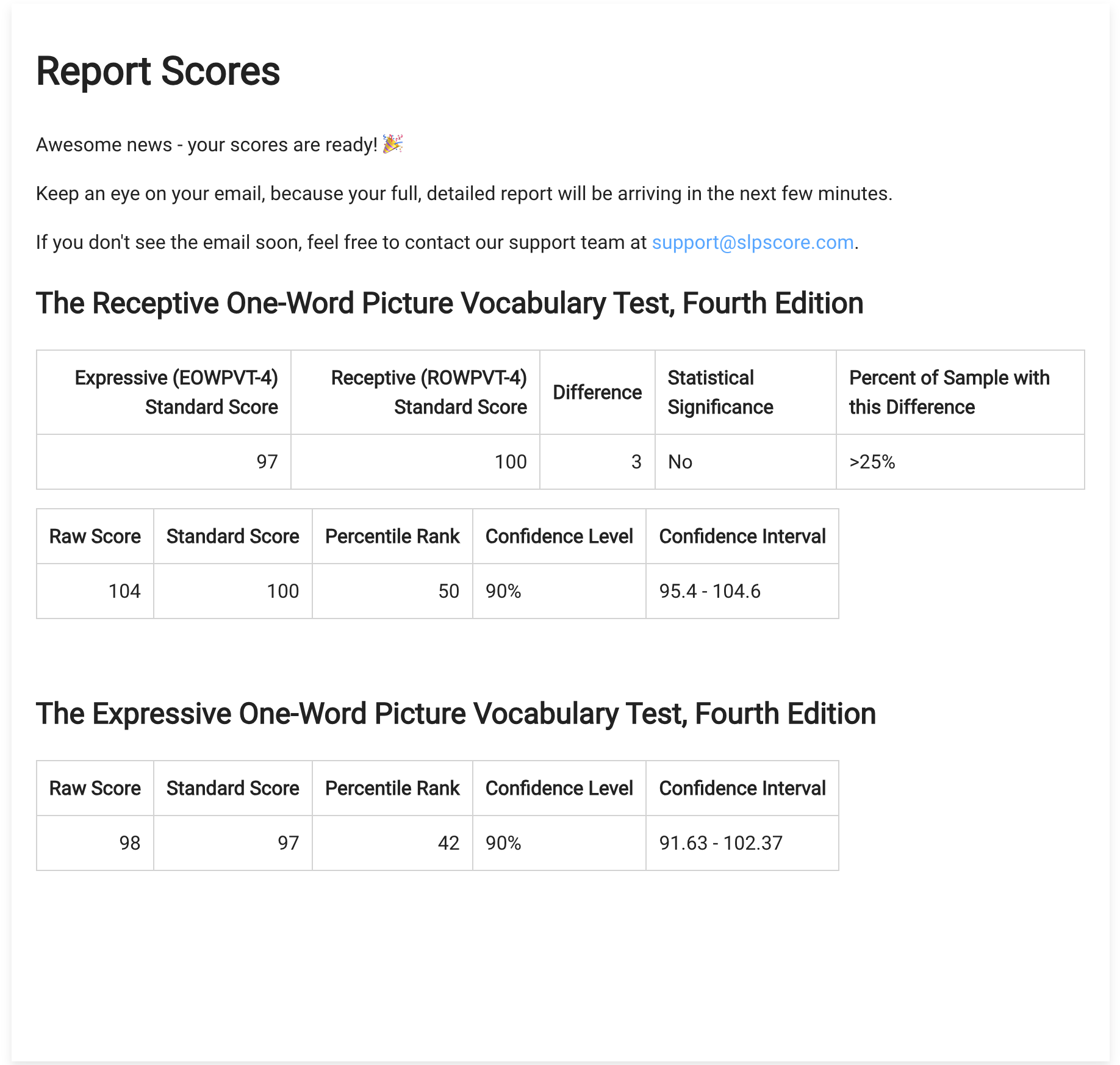
After clicking Submit:
- Wait a few seconds
- Your scored results will appear immediately on screen
- You will receive an email shortly with:
- An editable Google Doc containing the formatted and completed summary charts
Step 9: Access Reports Anytime
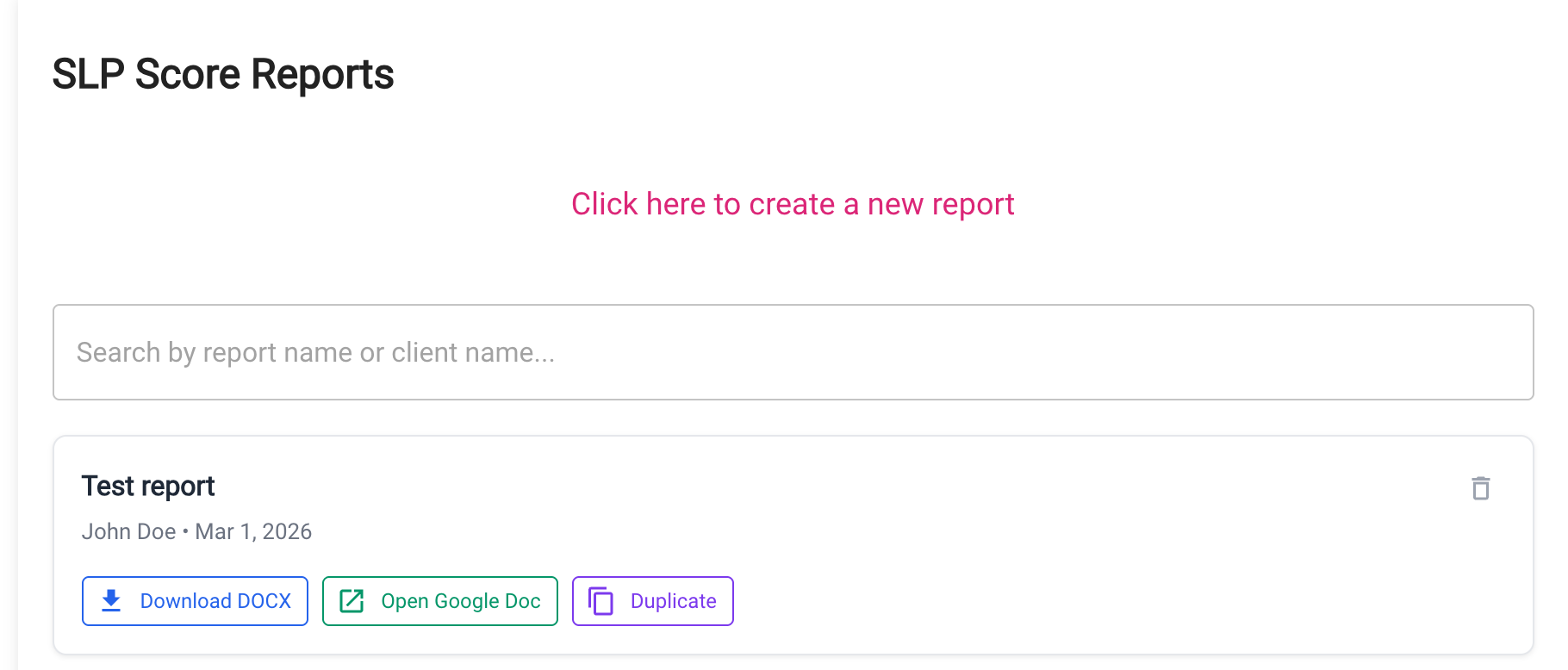
You can access past reports anytime from the Reports page.
Options:
- Download DOCX (for Word or other editors)
- Open Google Doc
- Duplicate (create an editable copy to re-run scoring or add assessments)
Duplicating is especially helpful if:
- You entered incorrect raw scores
- You need to add an additional assessment later
What Happens After Scoring?
You'll have:
- Standard Scores
- Percentile Ranks
- Confidence Intervals
- Statistical Significance indicators
- All formatted and ready to use.
Common Mistakes
- Forgetting to select a client
- Leaving raw score blank
- Accidentally excluding a metric
- Clicking Save Draft when intending to score